
Menu groups
Menu groups organise selected categories together. Check the channel and outlet before editing one.
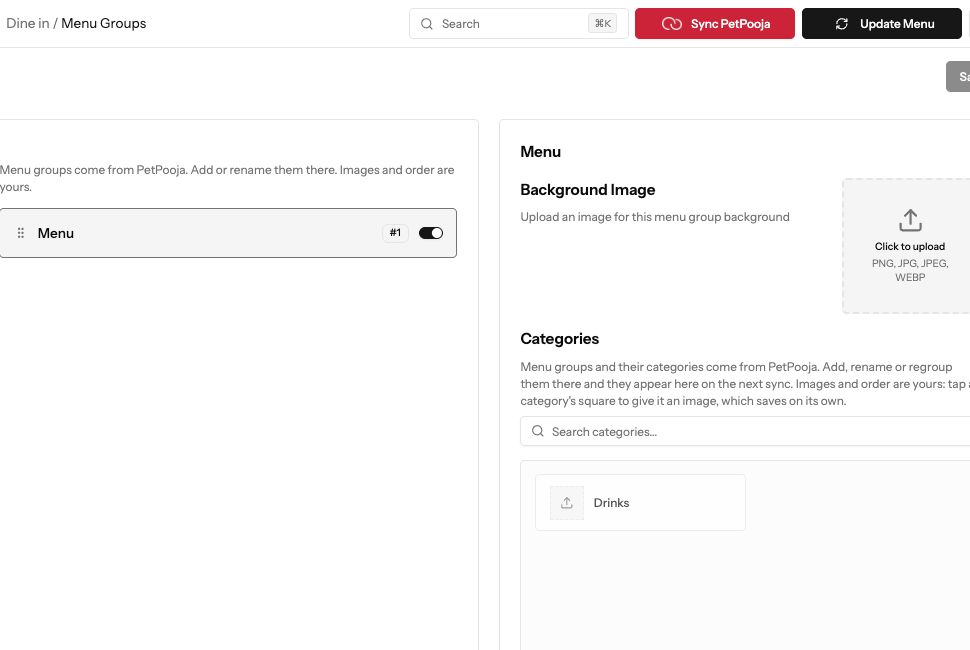
Demonstration data. A POS-managed menu group, with background image and category controls.
1. Open Menu Groups
Section titled “1. Open Menu Groups”Open the relevant channel’s Menu Groups page. Select an existing group to see its name, background image and categories.
2. Add or regroup categories
Section titled “2. Add or regroup categories”For a menu managed in Muncho, choose Add New Menu Group, enter the Menu Group Name, then select its categories. For a PetPooja menu, add, rename and regroup categories in PetPooja and sync them into Muncho. The page explains which changes belong in your POS.
3. Review and save
Section titled “3. Review and save”Check the selected categories and save the group. For a Muncho-managed group, edit its name or categories in the details panel, then save. On a POS menu, use the controls available for images and order; the POS owns the group and category names.
4. Check what guests see
Section titled “4. Check what guests see”Open that channel’s guest menu and make sure the intended categories are grouped together. A group does not create missing dishes or replace the POS menu source.
If the page says No Menu Data
Section titled “If the page says No Menu Data”Check that the venue has a loaded menu and the correct outlet is selected. For a POS venue, resolve the menu sync first.