Menu basics
Open the menu for the channel you want to manage. At POS-connected venues, the POS remains the source for the menu details it supplies.
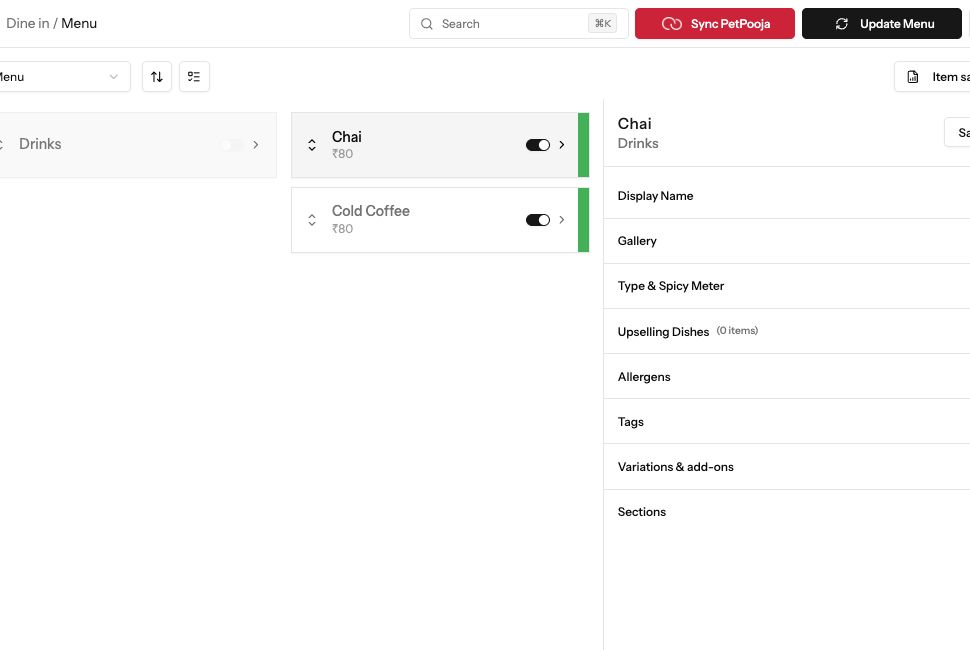
Demonstration data. The channel menu and the selected dish details.
1. Open the channel menu
Section titled “1. Open the channel menu”Choose Dine in, Delivery or Pickup, then Menu. Check the selected outlet or section. Use the categories and dish search to find an item.
2. Inspect a dish
Section titled “2. Inspect a dish”Select a dish to open its details. Review its name, price, image, options and availability. Check the available and stock controls separately; an item can exist in the menu and still be out of stock.
3. Update through the correct source
Section titled “3. Update through the correct source”For a POS-fed dish, make the source change in the POS and use the existing sync process. Use the editing controls Muncho offers for fields and availability it manages. Do not import another menu over a connected POS menu.
4. Check the guest menu
Section titled “4. Check the guest menu”After a change or sync, open the matching guest link and verify the dish, price and options. Check every affected channel when changing shared menu order; the dashboard warns when an order change applies across channels.