Quickstart: your first order at the table
Go from a new Muncho account to guests ordering and paying from their table. This guide has four steps, all in your Muncho dashboard.
You will need: your Muncho login, your PetPooja restaurant ID if you use PetPooja, and your business and bank details for Razorpay.
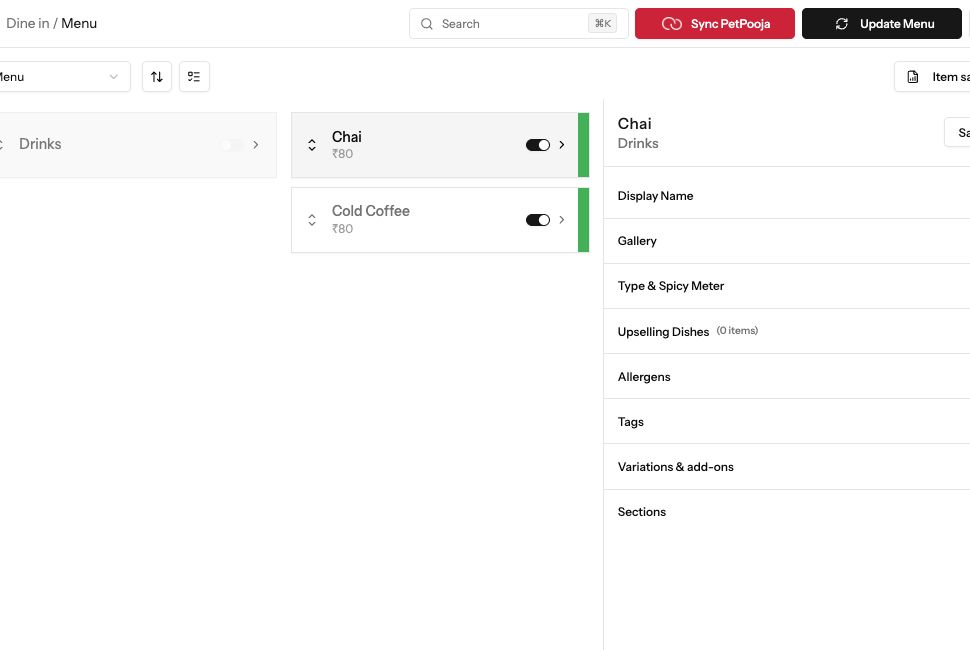
Demonstration data. A demonstration dine-in menu with its dishes and item details.
1. Finish the setup checklist
Section titled “1. Finish the setup checklist”Open Dashboard at the top of the sidebar. The Set up checklist for your restaurant lists what Muncho needs. For table ordering, where guests pay through Razorpay and their orders reach your POS as KOTs, that is Choose your pack, Connect Razorpay, Restaurant address, Business details and Connect your POS. Fill in each one; it shows Done when it is finished. (A restaurant on Basic order-only, with no POS and payment collected at the venue, sees Menu and QR ordering instead of Connect Razorpay and Connect your POS.)
On Choose your pack, pick Yearly or Monthly and press Choose Basic, or the button for a bigger pack. Basic is Rs 999 a month billed yearly (Rs 11,999 a year), or Rs 1,199 month to month, per outlet, plus 18% GST, and adds Rs 1,000 to your wallet every month. Every pack has every module. Razorpay comes after the pack.
On Connect your POS, pick your POS. On PetPooja, type your PetPooja restaurant ID and press Connect. If you do not use one, press I do not use a POS.
2. Get your menu in
Section titled “2. Get your menu in”If you use PetPooja or Prism, press Sync PetPooja (or Sync Prism) at the top of any screen once your POS is connected. It pulls your menu across from the POS.
No POS? Build your menu under Menu in each channel in the sidebar, for example Delivery > Menu.
3. Connect Razorpay
Section titled “3. Connect Razorpay”Guests pay you through your own Razorpay account. Open Dine in in the sidebar. If Razorpay is not connected yet, the page says Connect Razorpay to open Dine in, Delivery and Pickup.
- New to Razorpay: press Create Razorpay account.
- Already use Razorpay: press Connect Razorpay account.
If Razorpay asks for your website, enter muncho.in. Razorpay then reviews your account. This usually takes a few hours. Once it is approved, Dine in, Delivery and Pickup open on their own.
4. Print your table QR codes
Section titled “4. Print your table QR codes”Go to Dine in > QR Codes & Tables. Under Dine In QR Codes, pick a table in Select Table and press Download QR. To get every table at once, press Download All QRs under Bulk Download. If you have more than one dining area, pick it in Section first.
Print the codes and put one on each table. Guests scan, order and pay from their phone. Orders reach your kitchen and your POS, the money goes straight to your bank account, and every bill shows under Payment History.
Common failures
Section titled “Common failures”Dine in says "Connect your POS to switch on Dine in"
Dine in runs through your POS, so it stays closed until PetPooja or Prism is connected. Pick your POS on that page or on Connect your POS in the setup checklist. See Connect PetPooja or Prism.
The QR page says "No Tables Found"
Tables come from your POS, so add them there first. If they still do not show on QR Codes & Tables, message your Muncho account manager.
Razorpay says "Our payment processor is reviewing your account"
Nothing more is needed from you. Review usually takes a few hours, and Dine in, Delivery and Pickup open on their own once it is approved.
I cannot see the Sync button
It only shows once PetPooja or Prism is connected, and only to logins that can manage the menu. With no POS there is nothing to sync: build the menu under Menu instead.
Next steps
Section titled “Next steps”- Table ordering and paying from the phone: choose how guests order and who pays the online fee.
- QR codes and tables: everything on the QR page.
- Connect Razorpay: check your payment account is active.
- Switch on delivery and pickup: take orders on your own link.